I have benefited over the years from others who have documented their writing setups, and so I feel some obligation to pay the favor forward by doing so with my own. The stack I’ll describe here is one I’ve been iterating on for about twenty years, starting from when I began discovering the pleasures of plain-text writing. Every aspect of it has changed over that period, but the some basic goals and flows have been with me through the writing of my college thesis, five books, and hundreds of articles. I am quite happy with where I am, and others might benefit from what I’ve come up with.
Rationale
My goal has been to achieve what my uncle (the developer of a custom text editor-based operating system) calls “a timeless way of writing.” Maybe “durable” is more practical than “timeless.” In any case, what it means is the making of a writing workshop that is a pleasure to write with.
The design goals I aim to achieve with this setup are as follows:
- Minimalist authoring: Gets out of the way of writing and presents as few distractions as possible
- Maximalist capability: Capable of producing as wide a range of documents and outputs as I need, from notes to books and presentations
- User control: The writer is in control of the tools and can adapt them to preferences and needs
- Sovereignty: No surveillance or corporate profiteering to influence the design
- Community support: Active volunteer communities maintain the tools and help each other solve problems
- Stability: Likely to be reliable in the long term
If you have different goals than these, what follows may not be what you’re looking for.
Copying software developers
Starting with my aborted period as a computer science student in college, I learned to love code editors as writing tools. It turns out software developers make the best tools for themselves, and they understand better than anyone the ridiculous bloat of the commercial software they get paid to make. The classic code editors, Vi and Emacs, date back to the 1970s, and they are still widely used. They are visually uncluttered yet extremely powerful, and they have no profit motive attached to them. There is no surveillance or subscription.
The downside, perhaps, is that they come from a time when people expected a learning curve for any piece of software, and it takes some effort to use them well. Expect to read a manual and spend a few months getting acquainted with the basic keystrokes. But the benefits of speed and customization are well worth the work.
These tools, unfortunately, are not designed for collaborative writing. When I co-author papers, I generally end up in Google Docs or Overleaf. They work well for collaboration, but I find the writing process less satisfying, so I try to do the initial writing in my own setup as much as possible.
OS: Linux and the terminal
I use various flavors of Linux on my machines because it is the operating system that best suits the above design goals. I also enjoy the diversity and creativity of the Linux ecosystem, so I periodically change which distributions I use. But lately I lean most heavily on the COSMIC desktop environment created by the Colorado-based company System76; a tiling window manager, which COSMIC makes easy, is essential for keeping an orderly desktop. I also have a locally constructed System76 desktop, a repairable laptop from Framework, and some old machines that Linux helps keep alive.
I do my writing in the terminal. This is the text-centric, command-line environment that gets you a bit closer to the guts of the machine. Since writing is primarily about the creation of text, a text-centric environment works best most of the time. There are lots of different terminal emulators out there, but I generally use whatever is the default. COSMIC Terminal and BlackBox both have options for hiding the menu bar, which saves screen space and reduces distractions.
The stack described below is encoded in my dotfiles, which include my configuration files and scripts for Arch, Debian, and Fedora distributions. Most of what follows should work on other Unix-ish systems like Mac OS.
Markup: Markdown
After a brief and painful flirtation with writing LaTeX markup directly, I have long been using Markdown, which is a simple set of rules for formatting text. It easily handles the vast majority of what writers need, and most of the rest can be handled with the extended capabilities of the processor I use, Pandoc (more on that later).
Markdown has become the standard format for software documentation, chatbot interaction, and static website generators; I don’t need to belabor the argument that it does its job well.
Editor: Vim
For many years I used Emacs and really loved it. Then, during a winter break, I decided to read an Emacs manual and get to know it better. I realized that the goal of Emacs—to turn your text editor into an operating system—was not my goal. I had always avoided Vim (or Vi or Neovim or whatever version you like), but I realized its philosophy was much more what I was looking for: a minimalist writing environment that integrates with the rest of the operating system rather than competing with it.
I currently use Neovim, though after some experimentation I have opted for a simple setup that doesn’t use any Neovim-specific plugins, so I could just as easily use Vim, and I confusingly refer to it as Vim for short. My .vimrc configuration file includes a few custom keystrokes and preferences that make it act less like a code editor and more like a word processor.
To launch Vim from the terminal easily, I have a very Vim-like alias command: e [file]. (Within Vim, :e [file] is the command for opening a file.)
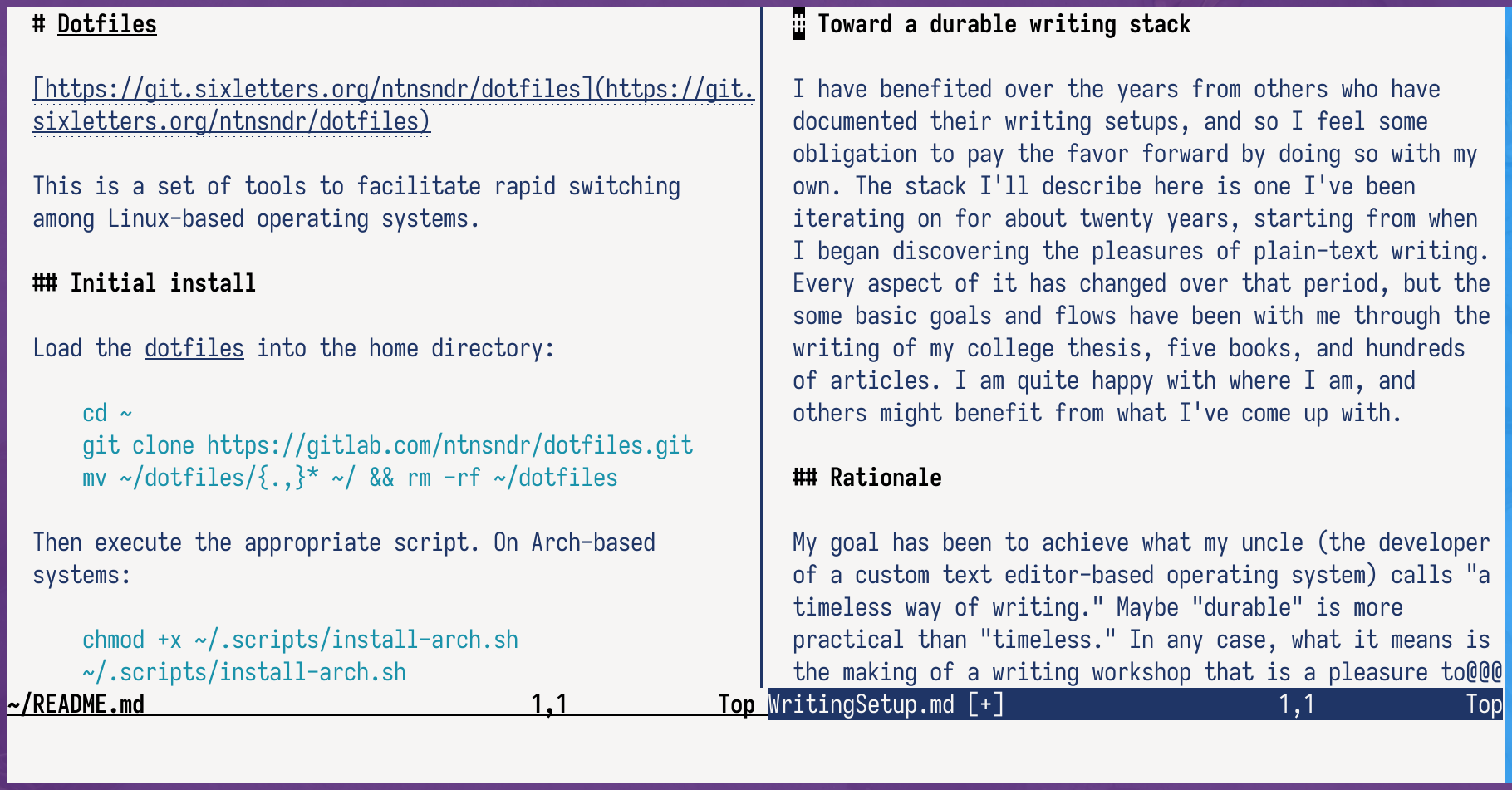
I typically have Vim open in split-screen, with my draft open on the right side of the screen and my notes on the left.
References: Zotero
Zotero is an open-source reference manager developed by and for academic researchers. It consists of a graphical client, a web-browser plugin for grabbing sources, and a synchronization system for use across devices. Better BibTeX is a plugin that automatically exports a text representation of one’s Zotero library, which will be necessary for the rendering step below. Using it, I have Zotero continually updating a lib.json file.
For synchronization, I use Zotero’s cloud service for the bibliographic data and the WebDAV file sync to Nextcloud (see below) for documents. Open standards are wonderful! It is really nice to use tools that don’t try to lock you in.
I wish I could make full use of Zotero from the terminal, but the GUI client is necessary to access all the features. I usually keep it open in a separate workspace, so I see it only when I need it.
Rendering: Pandoc
To render Markdown files into PDF, DOCX, HTML, and more, I use Pandoc, first created by a philosophy professor. It’s an incredibly powerful command-line tool for converting documents from one format to another. It also extends Markdown with functionality for things like citations, tables, and more.
There are Pandoc plugins available for Emacs and Vim, but I prefer to use my own shell script called Panda. I can use this both from the terminal command-line and within Vim, using a simple wrapper in the .vimrc linked above. The script includes customizations like a pointer to my bibliography file from Zotero and some defaults I prefer.
Panda only works for one file at a time. For projects with multiple files, like books, I will make a script like this and call it from the project directory when I am ready to compile:
#!/bin/sh

files='Frontmatter.md 0.md 1.md 2.md 3.md 4.md 5.md Endnotes.md Bac
kmatter.md'

cmd='pandoc -s -f markdown+smart --citeproc --pdf-engine=xelatex --
bibliography /home/ntnsndr/Zotero/lib.json --toc=true --toc-depth=1
 -o ./output/Title'

# Run conversion commands for each filetype
$cmd.docx $files
$cmd.epub $files
$cmd.html $files
$cmd.odt $files
$cmd.pdf $files
In addition to text documents, Pandoc can export to several presentation formats. I use Reveal.js, which creates slideshows that display in a web browser. I prefer creating and storing presentations in Markdown and then exporting them when it’s time to present. To compile from Vim, I just run :Panda reveal and out it comes.
Synchronization: Nextcloud
One nice thing about doing everything in plain text files is that they synchronize really easily, and they can be opened and edited on any kind of device. I use Nextcloud, an open-source and self-hostable tool that has similar features to Google Drive. My active projects are always automatically synced.
I manage a Nextcloud server for myself and my family on a server running YunoHost, which simplifies deployment and updates.
This allows me to easily move between writing on a computer and on a phone. I usually use Markor, an open-source Markdown editor, on my Android-based, surveillance-resistant eOS mobile operating system.
Versioning
One thing that text files lack, compared to modern word processing formats, is integrated version control. You can’t go back and see old versions and revert changes. But I don’t miss it.
Nextcloud has its own basic version control, so I can revert to earlier versions of a file using the web interface. For more complex projects, like books, I use what the software developers use: Git. There’s a bit of a learning curve on this one, but with practice it becomes a phenomenally powerful way to manage versions and changes. No need to upload any of it to a corporate cloud like GitHub; for single-authored projects, I just keep the repository on my computers, synced on Nextcloud.
Editing
Revision is a really, really important part of the writing process, and I always go through multiple rounds of edits on anything before it sees the light of day. A first round can happen within Vim. But for some reason I catch a lot more errors when reviewing formatted text. Maybe the formatting puts the fear of being published into me and makes me more anxious about errors and poor wording.
For years I have relied on printouts for the final rounds of editing. There’s nothing better. But increasingly I have started doing the next-best thing: hand-editing PDFs on e-ink. This became possible when I bought a PineNote, an e-ink tablet that runs community-developed distributions of Linux. A ReMarkable is a more polished alternative for people less willing to hack around with still-glitchy operating systems.
I mark up the draft PDF using Xournal++, sync the annotated file to Nextcloud, and then open it in the same program on a computer with a keyboard. Then I can put it alongside the terminal and adjust the source file in Vim accordingly.
After I turn in a draft, most of my editors like to use DOCX files for comments and tracking changes. I use LibreOffice for that, which usually just reminds me of how much I prefer my terminal.
Experiments: AI, mostly
I am always exploring tweaks to my stack. Since it is 2026, a lot of those now involve AI.
Paradoxically, the latest technology has enabled me to do more writing by hand than I have since my teenage journals. I write on the PineNote in Xournal++ and export PNG or PDF files. Then I pass them to a modern chatbot for transcription. (I am still working on getting a local model to work well, but in the meantime I mostly use one of the tools available under my employer’s corporate contracts to prevent the data from being used for model-training.) Since Markdown is the native language of chatbots, exporting the transcripts into my workflow is easy.
I have also been experimenting with using AI agents as part of the writing process. I do all my own writing, because writing helps me think and because I wouldn’t ask anyone to bother reading what I couldn’t bother to write. But I have found some value in using agents for research assistance, reviewing drafts, editing transcripts, and coding scripts. I have also played with using Duck.ai’s voice chat to develop ideas conversationally.
Again, for AI stuff, I have been following the lead of software developers, who use AI in different ways than most people. Coding agents, like code editors, work perfectly well for writing-related tasks, and they come with much more user control. I am currently testing the highly configurable, open-source pi.dev harness, which is a starting point for experimenting with various add-on tools and skills.
For models, I use Ollama, both to run local LLMs on my machines and to access cloud-based options without data retention or model training on my interactions. LLM is a nice wrapper around Ollama for command-line interactions.
Conclusions
I know this might look like a lot, and perhaps it is. But it is a setup that I’ve developed gradually over the years, piece by piece, and now it fits like a very, very comfortable glove. When you think about it, it’s in some respects a lot simpler than finding a feature on Microsoft Word or firing up a massive cloud data-center somewhere to write a blog post.
Let me know if you have any questions about replicating any of this for yourself. Many other people have helped me figure this out, and the learning-together is part of the pleasure.